Azure Migrate Now Does File Shares
Azure Migrate can now discover and assess your SMB and NFS file shares, and the Copilot Migration Agent will run the whole migration to Azure Files end to end. Here's what's changed and what to watch for.

Cloud Stack
Jun 11, 2026 · 7 min read
Every migration project has one. The file server nobody owns. A decade of departmental shares, mapped drives welded into login scripts, and a folder called DO NOT DELETE that predates everyone on the payroll.
VMs get the royal treatment in Azure Migrate. Discovery, dependency maps, right-sizing, cost models. File shares? A PowerShell script, a spreadsheet, and a guess. That always struck me as backwards, because in my experience it's rarely the VM that breaks the cutover. It's the data behind it.
That's changed. In two stages.
What's Actually New
April first. Microsoft announced discovery and assessment for SMB and NFS shares hosted on Windows and Linux servers. The existing Azure Migrate appliance does all of it, agentlessly. Nothing installed in the guests, no new tooling to learn. Update the appliance and it starts finding shares.
Then last week the other shoe dropped. The Azure Copilot Migration Agent, which Microsoft made publicly available back in March, now covers file share migrations end to end. Azure Migrate handles discovery, assessment and planning. Storage Mover moves the data. One guided flow, and you can drive it in plain English from the portal.
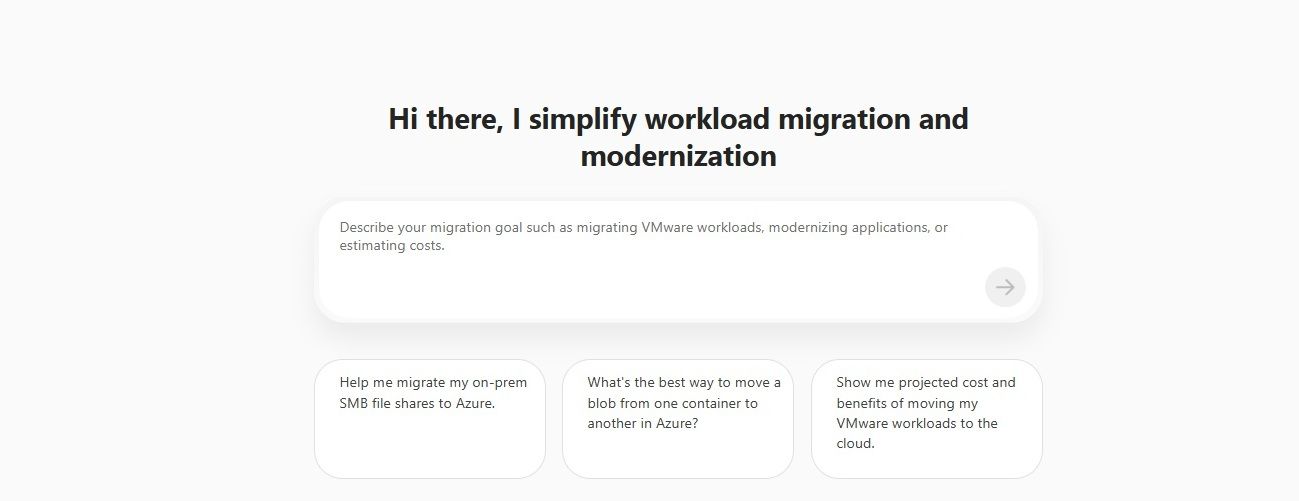
The Copilot Migration Agent connecting discovery through to execution.
Worth being precise about scope. The full end-to-end agent experience covers SMB shares going to Azure Files. NFS shares get discovered and assessed, but you're driving Storage Mover yourself for the actual move.
How Discovery Works
The appliance enumerates shares across your discovered servers and pulls back the useful stuff. Storage consumed, file counts, access patterns. A few hours for most estates, and it all lands in the same inventory you already use, sitting under the Infrastructure tab next to the servers hosting it. Filter or tag your way to the shares you care about.
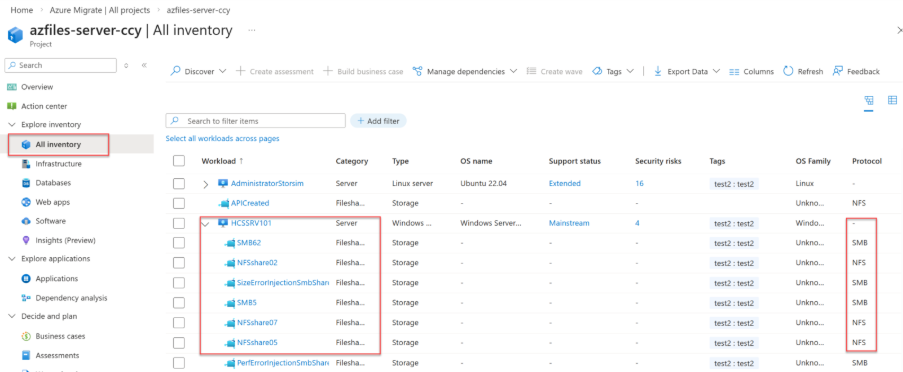
Discovered file shares in the Azure Migrate inventory.
The Assessment
Once discovery finishes, pick your shares, set a target region, tier preference and redundancy, and run the assessment. Each share comes back with three things.
| Output | What you get |
|---|---|
| Readiness | Ready Ready with Conditions Not Ready Compatibility issues, unsupported configurations and permission gaps surfaced before you migrate, not during the cutover weekend. |
| Tier recommendation | Standard or Premium per share, based on actual usage. No more paying Premium rates for a share full of stale PDFs. |
| Cost estimate | Monthly Azure Files cost per share, so the business case runs on numbers instead of vibes. |
Run it performance-based rather than as-is if you want tier recommendations worth anything. It's the usage data that separates the genuinely hot shares from the archives that just look big.
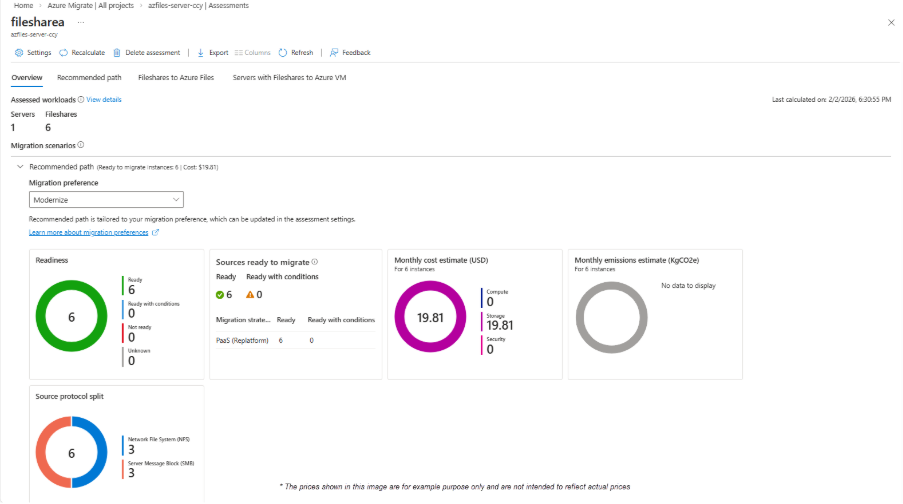
Assessment output: readiness, recommended tier and monthly cost per share.
Where Each Tool Now Sits
I wrote about Azure File Sync vs Storage Mover a while back, and none of that comparison changes here. What's changed is the step before it. The one everyone used to skip.
Azure Migrate
What shares exist, which are ready, what tier they need, what it'll cost.
Storage Mover
One-way bulk migration into Azure Files, driven manually or by the Copilot agent.
Azure File Sync
If you're keeping an on-premises cache and tiering cold data rather than fully exiting.
The Storage Mover or File Sync question is the same as it's always been. Are you leaving the building, or keeping a foot in it? The difference is you now make that call per share with real readiness and usage data in front of you, not whatever the last admin scribbled in a wiki in 2019.
Gotchas Before You Get Excited
\\oldserver\share still needs a plan. I covered the options for keeping UNC paths intact in the Azure Files migration guide.For years the honest answer to "how do we plan our file share migration?" was a Robocopy dry run and a prayer. Now the appliance you've already got running hands you a costed, readiness-checked inventory of the whole estate, and an agent that carries it through to Storage Mover without a tool swap in the middle.
About time. Update your appliance, let discovery soak for a couple of weeks, and walk into the next planning session with actual data.
Just don't ask it what's in the DO NOT DELETE folder. Some mysteries aren't for the cloud.